Downloads
Setup guide
Everything you need to install Autrex and get ready for your first match. Step by step, no guesswork.
~2 minutes
Windows · macOS
Auto updates
Your operating system:
System Requirements
Windows 10 or higher
4 GB RAM
500 MB free space
League of Legends must be installed
macOS Monterey (12) or later
Apple Silicon (M1 or later) or Intel — a native build for each, no Rosetta needed
4 GB RAM
500 MB free space
League of Legends must be installed
Installation Steps
1
Run the downloaded file
2
Follow the installation wizard
3
Enter your license key
4
Launch Autrex and open League of Legends
1
Double-click the .dmg file you downloaded
You will find it in your Downloads folder in Finder.
2
Drag the Autrex icon into Applications
The arrow in the window shows you which way to drag. Do not run the app from inside the .dmg.
3
Run the quarantine command in Terminal once
Covered in the next section. Skip it and the app will refuse to open, saying it is damaged.
4
Open Autrex and enter your license key
You can delete the .dmg file now.
macOS: First Launch
macOS: "damaged" error on first launch
The first time you open Autrex, macOS may say "Autrex is damaged and can't be opened." The app is not damaged — macOS flags every app that comes from the internet without an Apple certificate. The command below removes that flag, and you only need to run it once.
- Make sure you have moved Autrex into your Applications folder.
- Open Terminal (press ⌘+Space and type "Terminal").
- Paste the command below and press Enter.
- Open Autrex. You will not need to do this again.
xattr -cr /Applications/Autrex.app
If the command finishes without printing anything, it worked. Note: System Settings > Privacy & Security > "Open Anyway" does not help with this particular error — that button only appears for the "unidentified developer" warning. You do not need to repeat this after updates; Autrex clears the flag itself when it updates.
First Use
1
Open League of Legends
League Client needs to be open before starting Autrex.
2
Launch Autrex
On Windows use the desktop shortcut; on Mac open it from your Applications folder.
3
Enter your license key
Enter the license key you copied from your dashboard.
4
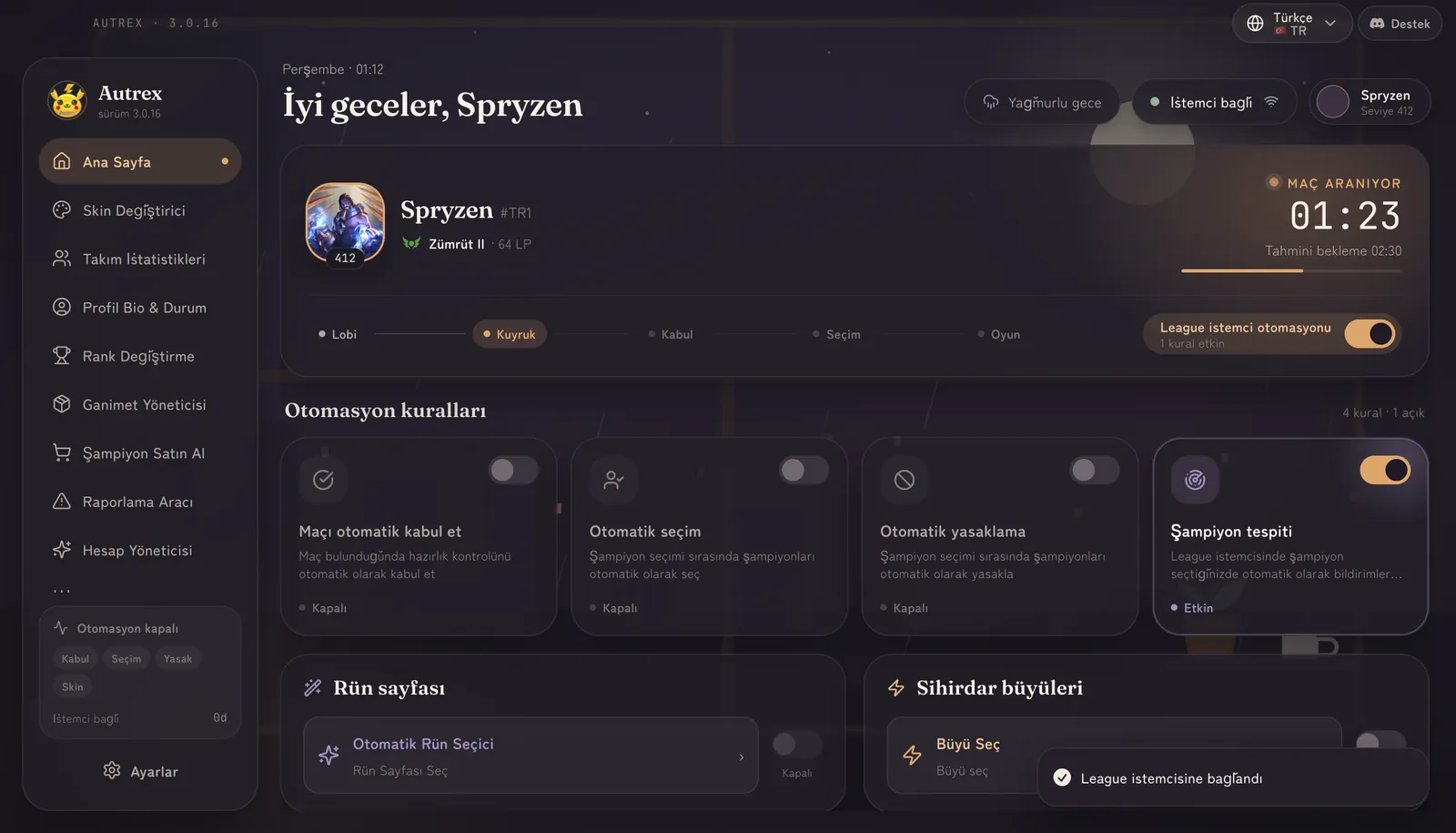
Activate Auto Accept
Enable the Auto Accept button on the main screen. You're ready!
Tips
Picking the Right Mac Build
There are two Mac builds. The Apple Silicon build is for M1, M2, M3 and M4 chips; the Intel build is for pre-2020 Macs. Not sure which you have? Check About This Mac under the menu. The download page detects your Mac and suggests the right one.
Administrator Permission
On Windows, Autrex asks for administrator permission every time it starts. The skin changer writes into the game's memory, so this is required; without it those features silently do nothing. If your antivirus warns you, add Autrex to its exclusions.
Remote Control
You can leave Autrex open and connect from your phone. Use QR code or 6-digit code from the Remote Control section.
HWID Reset
When you change computers, use the HWID reset feature in your Dashboard to transfer your license.
Auto Updates
Autrex checks for updates on launch. When a new version is out you update from inside the app in one click; once the download finishes Autrex closes and reopens on the new version. On Mac you do not need to repeat the Terminal step after an update.